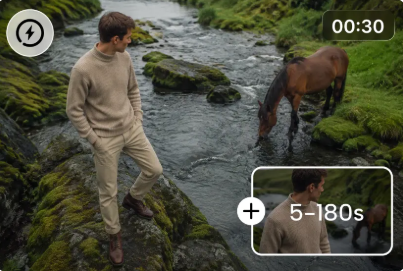
Often when searching stock libraries, you find clips that seem to be almost exactly what you’re looking for, but they lack the important creative details. This could be the wrong location, wrong camera movements, wrong atmosphere, etc. Stock footage is still useful for real recordings, licensed footage, and easily accessible footage. But there is no appropriate footage for all creative needs. Dreamina AI is another way to generate video scenes from written prompts. This approach allows producers to experiment with custom-made visuals without having to use all pre-recorded footage.
Recognize the Difference Between Generic Footage and Purpose-Built Visuals
Even a technically relevant clip can convey the wrong emotion, setting, or action. The text to video generation feature enables creators to delve into scenarios based on particular story needs, rather than relying solely on available libraries. Dreamina AI enables you to specify the topics, actions, scenes, lighting, and visual styles. This versatility allows for more intentional creative direction, but care still needs to be taken in the evaluation of generated footage. Before putting clips into a project, check realism, motion consistency, composition, and relevance.
Plan a Custom Clip Around Its Exact Purpose
Begin by having your script and figuring out exactly what statement each visual needs to back up. Identify the theme, explain what it is doing, and state the context. Identify camera distance, perspective, framing, and negative space when captioning or graphicizing. Select the lighting, colors, movement, and atmosphere that fit your message. Before creating anything, think about the platform you’re creating for, aspect ratios, resolution, and editing needs. While attractive visuals can’t ensure narrative relevance, Dreamina AI is more effective within a defined creative brief.
Steps to Replace Stock Footage Hunts With Custom-Made Text-to-Video Clips
Step 1: Open Dreamina and describe your custom clip
- Sign up or log in to Dreamina first, so you can start creating custom clips.
- Now, open the “Create” tab from the left menu and pick the “AI video” option.
- Later, enter a detailed text prompt describing how your custom clip should look and feel. Add details on video elements, sound, background, theme, and concept to match your exact needs.

Step 2: Pick a model, size the frame, and generate the clip
- Next, pick a model from the options present at the bottom of the dialogue box.
- Select a model such as Dreamina Seedance 2.5 or Dreamina Seedance 2.0 for stock replacements: Dreamina Seedance 2.0 Fast, Dreamina Seedance 2.0 Mini, and Dreamina Seedance 1.0 cover other needs.
- Click on “Omni reference” to guide the AI with multiple reference images for accurate footage.
- Adjust the custom aspect ratio and resolution from the “Aspect ratio” and “Resolution” tabs now.
- Finally, click on the “Generate” tab to begin creation of your custom stock footage clip.
Step 3: Tweak the footage and download your clip
- If the clip feels off, you can “Edit prompt” or “Regenerate” to refine the output.

- You can also edit the generated video using the “Edit video” option for a better fit.
- Besides, you can use “Edit segment” to edit only one wrong part of the video.
- Use “Extend video” to lengthen a clip when the footage needs a little more time. You can improve your video quality using “Creative upscale” for a crisper, more professional result.
- Dreamina gives you complete freedom to edit your video clip the exact way you like.
- Finally, click on the “Download” tab present on the top right of the Dreamina interface. This saves the video file on your local device, ready to drop into your timeline.
Six Custom Video Assets Worth Creating Instead of Searching For
- Exact Environmental Shot: Create a particular weather, lighting, architecture, and atmosphere rather than taking a guess about the environment.
- Script-Specific Action: Talk about specific actions or interactions that help to carry out one person’s narration line.
- Abstract Concept Visual: Use metaphorical images to visualize concepts like innovation, uncertainty, transformation, or interconnectedness.
- The Composition-Controlled Background: Intentionally leave out the background to allow for captions, titles, and supporting graphics.
- Unusual Transitional Clip: Create unique visual connections between parts when regular footage fails to connect the parts.
- The Fictional or Imagined Environment: Investigate invented locations, speculative technologies, and impossible settings, beyond ordinary filming.
Improve Visual Relevance Through Better Prompts and Reference Control
The Dreamina AI uses specific prompts to understand the visual requirements better. Don’t write “a modern office”; write “a quiet contemporary office at sunrise, a designer looking through sketches next to a large window, warm natural side lighting, slow tracking movement, restrained neutral colors, realistic cinematic style. This direction will bring out the subject, the environment, lighting, and camera behavior that can be observed. If available, use Omni reference to guide composition or appearance. Regenerate clips that have been deemed unsuitable and fix supported clips where key information is still incorrect. Check for movement, extraneous objects, subject continuity, and visual artifacts. Results can be guided by reference images, but not guaranteed to be exact. In the case of a recognizable product, person, or brand, think about appropriate existing assets and image-to-video workflows.
Organize, Verify, and Integrate Custom Clips Into the Final Video
Prepare an asset brief for each clip, including what it will be used for, how long it will be used, how it will be framed, and where it will be placed in the script. When visuals illustrate real-world locations, products, scientific concepts, or historical events, check facts. Ensure continuity in lighting, colour, appearance of the subject and composition between scenes. When editing, focus on the relevance to the story, not just pretty footage to fill in the holes. Include narration, dialogue, music, and sound effects as required by the project. Check usage terms for generated outputs, reference material, trademarks, identifiable people, and separately sourced assets. Be aware of the credit costs and revision time, as initial generations can take a few tries. Blend Dreamina AI footage with appropriately licensed stock footage and genuine recordings to meet the needs of projects that require both creativity and accuracy.
Conclusion
Sometimes the stock footage is not exactly what a particular script, composition, or creative idea requires. Dreamina AI offers an alternative approach to investigating scenes centered around your visual needs. Identify the function of each asset, create an accurate prompt, produce a draft, check against the prompt, and edit out inappropriate information. Then add approved clips to the completed edit. The custom generation is not meant to replace stock libraries and real recordings; it is meant to complement them. Using the right source for each scene keeps the pictures relevant, consistent, and believable.